
Our solution consists of the server for live bus tracking and assigning routes, Raspberry Pi which functions as the bus module, and the Android application at the user end.
Server
On the server, we have created a website that can be used by the bus operator to view the live location of any bus he wants. We have also added the functionality of assigning bus routes to the buses so that the system can be more dynamic and the bus operator will also have the option to change bus routes of any bus he/she wants. We have tried to make the system robust so that any number of buses could be added and the functionality still works.
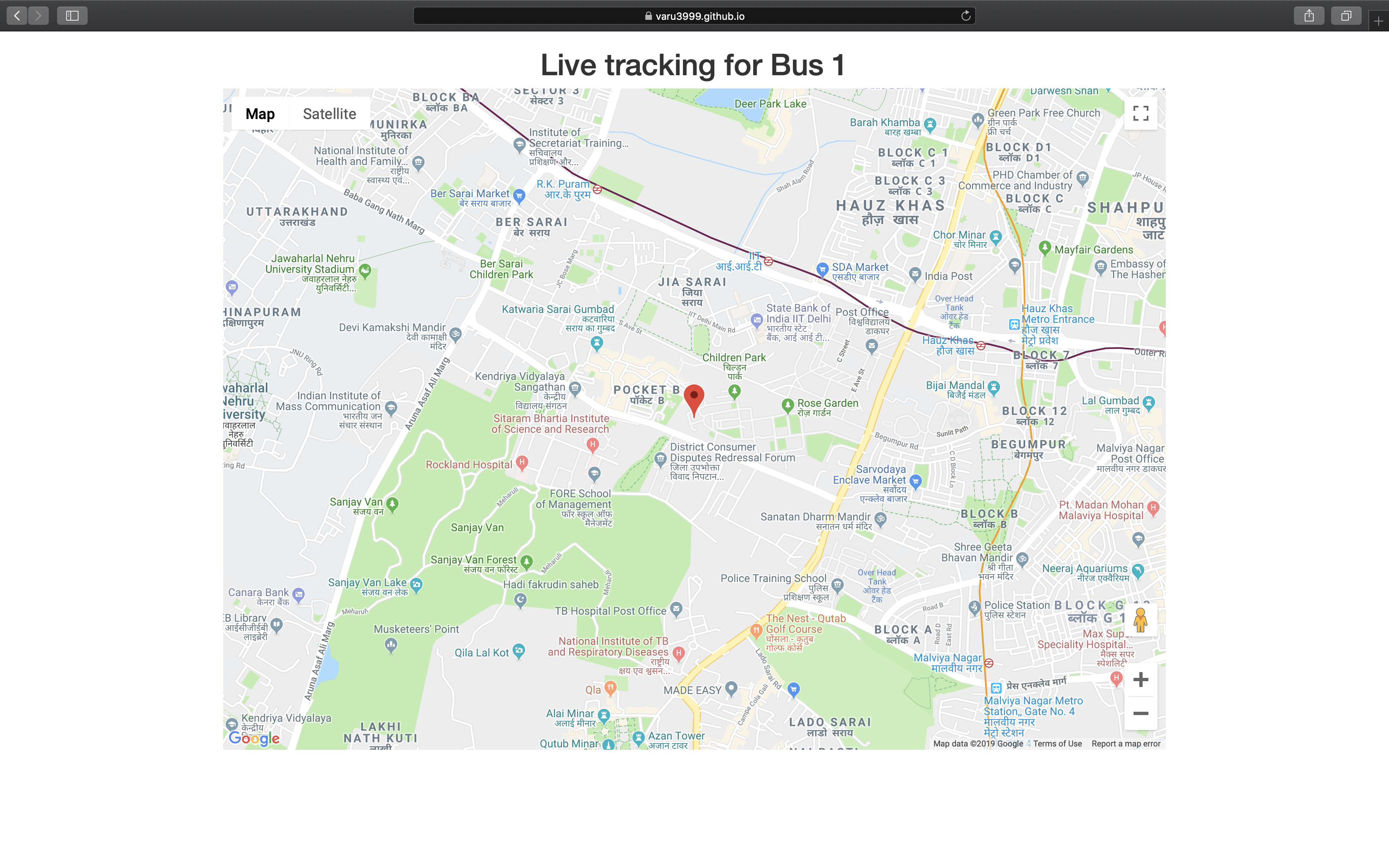
Working:
We have created a website that is hosted on github. It is easy to use and the operator just needs to login and then all the functionality are available to him/her. The live location functionality works as follows:
- The raspberry pi on the bus continuously sends the latitude and longitude data which it gets from the GPS module to the server using socket communication created on Python.
- Each
- When the server receives the data it uses the coordinate values to display on the map using Google Map API.
- The server allows viewing the real-time location of the bus.
Additional functionality of assigning bus routes to the buses:
- On the website, the operator has to select the bus and the route that he needs to assign to that bus.
- The server sends the details of the route such as stops, location of stops, etc. to the bus module.
- The bus module receives the information in real-time and updates the route on its scripts.
Challenges:
There were some challenges that we faced like sending data from bus module to the server, updating the marker on the Map in real-time but the main challenge that we faced on the server-side was making the functionality robust for multiple busses. Displaying the live location of a single bus easy but for multiple busses, it was a problem as if all the busses use the same channel to communicate then the server won’t be able to decide which bus coordinate are these and also the channel will get overcrowded with request and our system will become slow. To solve this problem we made different channels for different busses so there is no overcrowding of requests and our system works seamlessly.
Raspberry Pi Side
The pi is the main hardware component of our project. It acts like a workstation and integrates the entire project in a single thread. The pi can be broken down into two part: its working, and the scripts we used to make it work.
The working:
- As explained above, it communicates with the server at all times to download route data and to send its (and so the bus’) real time coordinates back to the server. For this we had to configure the pi to make it connect automatically to the internet on startup. Even though there are many ways to enable Internet access, here is a method which we found to be the easiest (scruss’ answer).
- On the hardware side, we have connected a Rhydolabz GPS TTL module, with an active antenna, onto the Pi’s UART port. The baud rate of the GPS module is fast enough to ensure a smooth updation of real time coordinates.
- For data broadcasting part of our workflow, we have made our Pi into an Eddystone URL Beacon, which broadcasts data in hex format. The data is then intercepted by the Android app and converted to a user friendly format.
The scripts:
We have created 2 python scripts, and a bash script for our purpose. Let us walk you through them:
- AutoRun: This bash scripts reads serial data from UART port, coming from the GPS, and stores it in a text file every 3 second. It then run the 2 python scripts to further the workflow.
- autorun.py: This python script reads the GPS data from the text file discussed above. It uses PYNMEA python library to extract the GPS coordinates out of the data, and then sends them to the server.
- main.py: The main.py script contains the information of the bus route that the bus is currently following and when the operator updates the route on the site it receives the message and update the route accordingly. It reads the coordinates of current location of the bus which are stored in coordinate.txt and also checks if the next bus stop has arrived. This script also has the function of broadcasting the next 3 Bus stop by using Eddystone URL.
Android
We have developed a simple android app that catches the Bluetooth advertisements from the raspberry pi and displays them on the screen. On pressing the speak button the app speaks out the next three stops. Our app contains no kind of database and requires no internet connection for its working.
Sounds easy right? Here is the hard part. The raspberry pi could only be converted into an Eddystone URL Beacon and Google discontinued support services for Eddystone URL in November 2018. Finding documentation for catching Eddystone URL advertisements was much harder than it sounds. After days of intense googling we were finally able to do find some documentation and our app starting catching the Bluetooth advertisement packets. We used Google Text to Speech to speak out the next three stops. The app constantly searches for the advertisements and dynamically changes the next three stops displayed on the screen.
After providing this basic functionality we started basic testing on the campus. The latency was a big issue since the raspberry pi sent packets of information periodically and the phone scanned advertisements at a particular rate. After thorough testing, we came to the conclusion that latency was minimum when raspberry pi advertised the packets every 2 seconds. We also added a reminder functionality in our app which reminds the user when his stop is about to arrive. Once you put in the destination on the app you don’t even need to press the speak button. It automatically starts speaking out when the next stop arriving is the destination put in by the user.
We worked on the User Interface after getting feedback from some Visually Impaired people when we visited NAB(National Association for Blind) R.K. Puram.
Screenshot of the app

 Deboard